• This is default featured slide 1 title

    Go to Blogger edit html and find these sentences.Now replace these sentences with your own descriptions.This theme is Bloggerized by Lasantha Bandara - Premiumbloggertemplates.com.

  • This is default featured slide 2 title

    Go to Blogger edit html and find these sentences.Now replace these sentences with your own descriptions.This theme is Bloggerized by Lasantha Bandara - Premiumbloggertemplates.com.

  • This is default featured slide 3 title

    Go to Blogger edit html and find these sentences.Now replace these sentences with your own descriptions.This theme is Bloggerized by Lasantha Bandara - Premiumbloggertemplates.com.

  • This is default featured slide 4 title

    Go to Blogger edit html and find these sentences.Now replace these sentences with your own descriptions.This theme is Bloggerized by Lasantha Bandara - Premiumbloggertemplates.com.

  • This is default featured slide 5 title

    Go to Blogger edit html and find these sentences.Now replace these sentences with your own descriptions.This theme is Bloggerized by Lasantha Bandara - Premiumbloggertemplates.com.

Create a RHEL/CentOS local yum repo from the OS disk

Creating a local yum repository from the OS installer disk(s) (CD/DVD) can be useful in many situations where the machine doesn’t have Internet access to install additional packages. While the installer disk can still be used after the initial OS installation, it is more convenient to use a local repository especially if more than one machine need access to the packages.
This guide is for RHEL6.3 but it should work fairly well with other RHEL releases (e.g. RHEL 6.4), clones (CentOS 6.4) and RHEL-like distributions (Fedora).

step1: mount the OS disk and copy the contents to a local path which will be the main repository path:

mkdir -p /mnt/cd /opt/yum/rhel6.3/repodata
mount -o loop /dev/sr0 /mnt/cd
cp -a /mnt/cd/Packages/*.rpm /opt/yum/rhel6.3

step2: copy the main xml file from main repodata folder to the new repo path:

cp /mnt/cd/repodata/*comps*.xml /opt/yum/rhel6.3/repodata/comps.xml
 Note: This is not necessarily needed, but it is useful if you want to use yum to query / install package groups (e.g. yum grouplist).

step3: generate local repository files

cd /opt/yum/rhel6.3/
createrepo -g repodata/comps.xml .
Note: the createrepo RPM is available in the official RHEL/CentOS/Fedora repositories.

step4.1: create new yum repository (e.g. rhel-local.repo)

cat /etc/yum.repos.d/rhel-local.repo

[rhel6.3-local]
name=RHEL 6.3 local repository
baseurl=file:///opt/yum/rhel6.3/
gpgcheck=1
gpgkey=file:///etc/pki/rpm-gpg/RPM-GPG-KEY-redhat-release
enabled=1

step4.2 (optional): store repository on a local FTP server


  • copy /opt/yum/rhel6.3/ to the remote machine in its FTP path (e.g. /var/ftp/) and make sure FTP is reachable
  • copy the RPM GPG key from /etc/pki/rpm-gpg/RPM-GPG-KEY-redhat-release to the remote FTP path (e.g. /var/ftp/rhel6.3)
  • create the repository file on the local machine (e.g. rhel-ftp.repo)
cat /etc/yum.repos.d/rhel-ftp.repo

[rhel6.3-ftp]
name=RHEL 6.3 FTP repository
baseurl=ftp://192.168.0.100/rhel6.3/
gpgcheck=1
gpgkey=ftp://192.168.0.100/rhel6.3/RPM-GPG-KEY-redhat-release
enabled=1

step5: test the repository

yum clean all
yum repolist

repo id                                                                                  repo name                                                                                             status
rhel6.3-ftp                                                                              RHEL 6.3 FTP repository                                                                               3,653
rhel6.3-local                 
Share:

ODI oracle data integrator 11g installation linux

This article walks you through the steps to install oracle data integrator 11g
Os : Red Hat Enterprise Linux Server release 5.4 (Tikanga)
[root@odil8001 logs]# uname -r
2.6.18-164.el5

Prerequisites:

1)Have installed Oracle Database 11g. If not done before, start the services and components for Oracle Database 11g
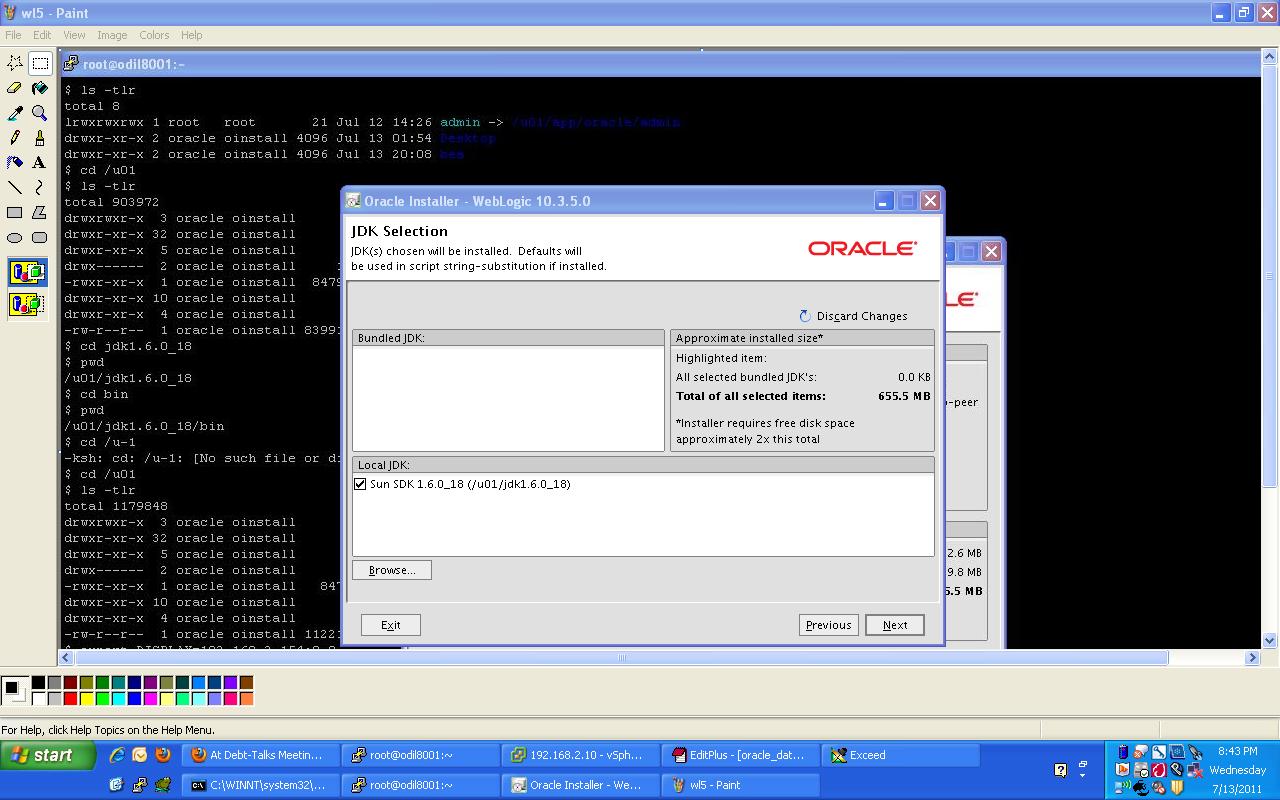
2)Install Oracle WebLogic Server 11gR1 (10.3.5)
Download wls1035_generic.jar to install on 64 bit linux.
-rw-r–r–  1 oracle oinstall 1122139308 Jul 13 20:32 wls1035_generic.jar
$ export DISPLAY=192.168.2.154:0.0
$ /u01/jdk1.6.0_18/bin/java -d64 -jar wls1035_generic.jar
Extracting 0%……………………………………………………………………………………….100%
3)Down load repository creation utility and start creating repository for ODI 11g installation:
/u01/rcuHome/bin/rcu
4)Install odi 11g
$ ./runInstaller
Starting Oracle Universal Installer…
Checking if CPU speed is above 300 MHz.    Actual 3200 MHz    Passed
Checking Temp space: must be greater than 300 MB.   Actual 6380 MB    Passed
Checking swap space: must be greater than 512 MB.   Actual 2559 MB    Passed
Checking monitor: must be configured to display at least 256 colors.    Actual 16777216    Passed
Preparing to launch Oracle Universal Installer from /tmp/OraInstall2011-07-13_09-05-42PM. Please wait …
Please specify JDK location ( Ex. /home/jdk ), <location>/bin/java should exist :/u01/jdk1.6.0_18
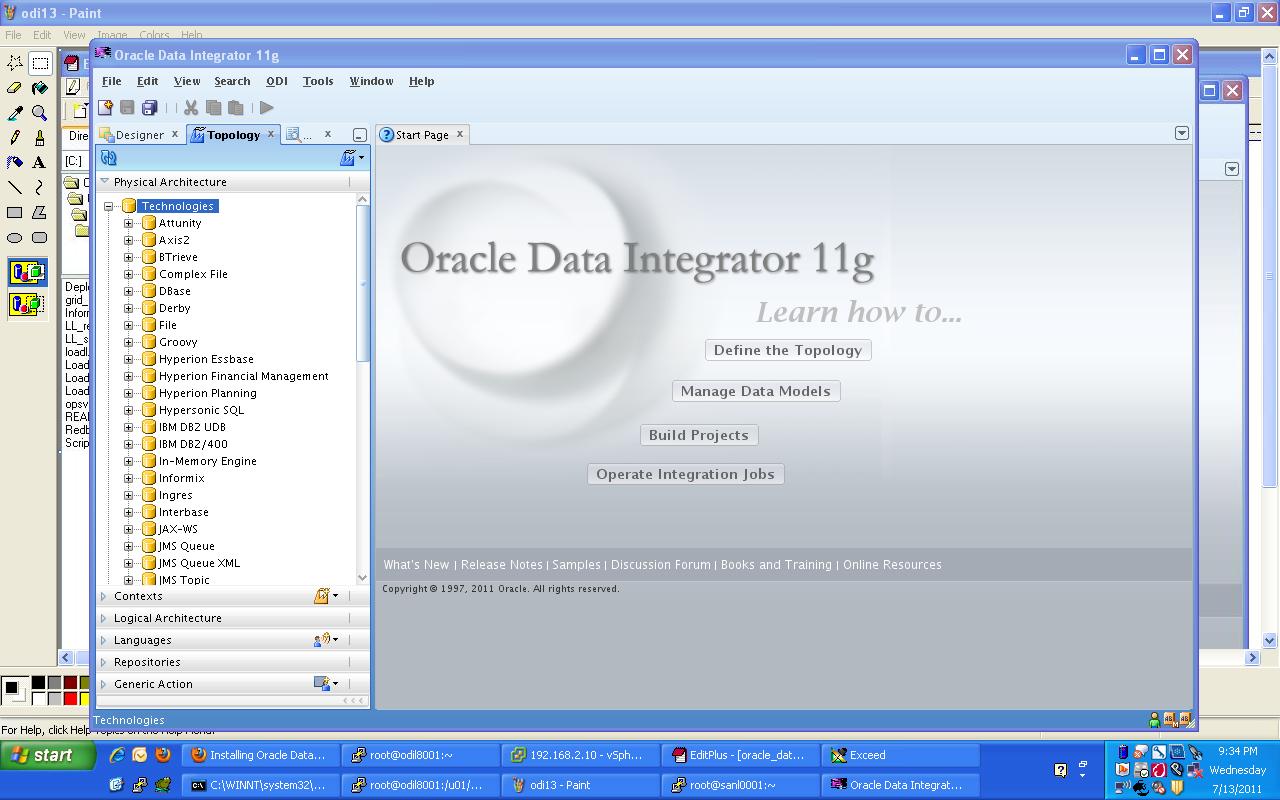
Starting odi console:
/u01/app/oracle/Middleware/Oracle_ODI1/oracledi/client/$ ./odi.sh
Oracle Data Integrator 11g
Copyright (c) 1997, 2011, Oracle and/or its affiliates. All rights reserved.
Deploying and Configuring the ODI Agent as a Java EE Application :
$ pwd
/u01/app/oracle/Middleware/Oracle_ODI1/common/bin
$ ./config.sh
Deploying and Configuring the ODI Agent as a Java EE Application

In the Select Domain Source screen, just click Next.
$ pwd
/u01/app/oracle/Middleware/Oracle_ODI1/oracledi/client
$ ./odi.sh
Oracle Data Integrator 11g
Copyright (c) 1997, 2011, Oracle and/or its affiliates. All rights reserved
In the Logical architecture, create a new logical agent with the same name as your new physical agent
$ pwd
/u01/app/oracle/Middleware/Oracle_ODI1/common/bin
$ pwd
/u01/app/oracle/Middleware/user_projects/domains/odi_domain
$ ./startWebLogic.sh
Share:

Popular Posts